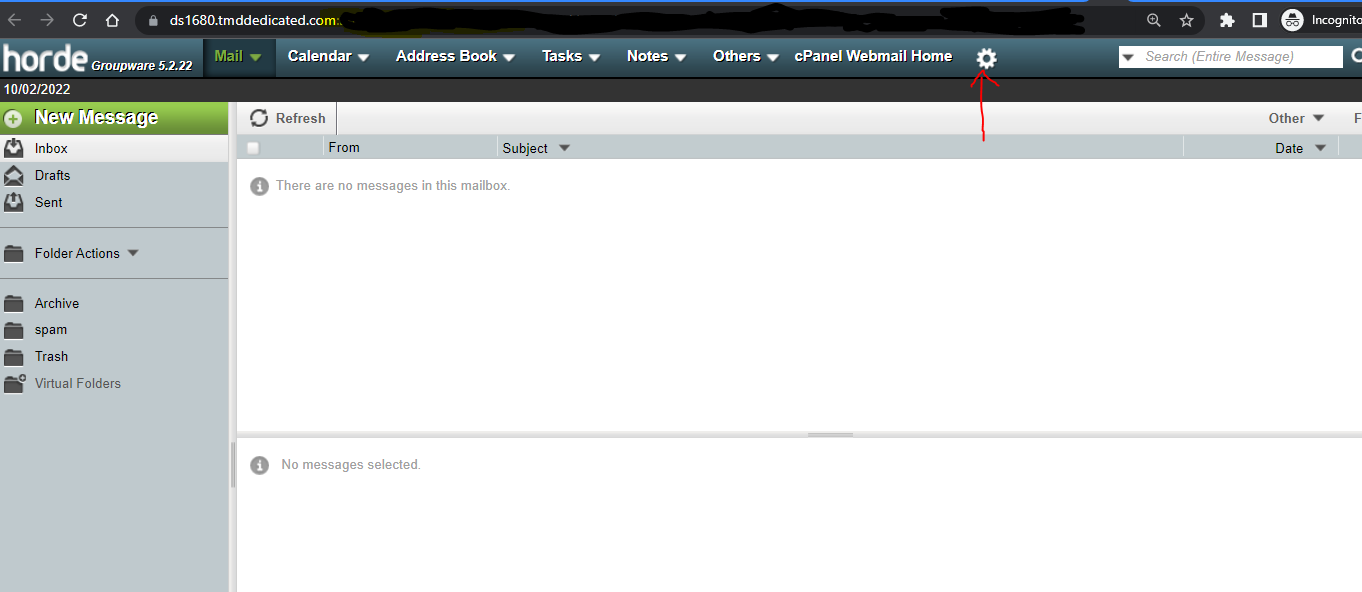
It’s easy to access and change your email options in the Hoarde email account.
As the image above indicates, the Settings button is on the top menu, next to the search bar on the right.
Hover over the wheel, and the drop box displays additonal options. Hover over Preferences, and another set of options appear. Lastly click on Mail Box.
The Email Preferences screen appears. Here you will find every option you need to set up the email account to your preferences.
The two top requests I get are:
- QUESTION:
How do I set up the email account so when an email is deleted, it is sent to the trash bin and not just displayed in the inbox with a line through it?ANSWER:
Under ‘Message’, click on the option ‘Deleting and Moving Messages’.Click on the option ‘Move deleted messages to your Trash mailbox instead of marking them as deleted in the current mailbox?’
Click the <SAVE> button.
Make sure ‘Trash’ is selected under ‘Trash Mailbox’.Personally, I like having the trash button in the menu for easy access. To place it there, check the option ‘Display the “Empty Trash” link in the menubar? (Basic view only)’.Select how often you wish the Trash to be purged.
Click the <SAVE> button. - QUESTION:
How can I set all emails that I send out to be in html (rich text) format?ANSWER:
In the same Email Preferences window, look for ‘Compose’. Under that, click on ‘Composition’. This is where you set up how your emails will look when you create them.As a default, ‘